Add to Chrome - Free

Show Your AI What You Mean

Annotate any screenshot. Generate the perfect prompt. Paste into your favorite AI coder.

Get Started in Seconds

From install to AI-ready prompt in five simple steps

Install Extension One click from the Chrome Web Store
Click & Capture Screenshot any page instantly
Annotate Mark up with arrows, text, comments, and more
AI Prompt Generate the perfect instruction
Paste into AI Copy & paste into any AI tool

How It Works

Three simple steps to go from idea to AI-ready prompt

Step 1

Capture

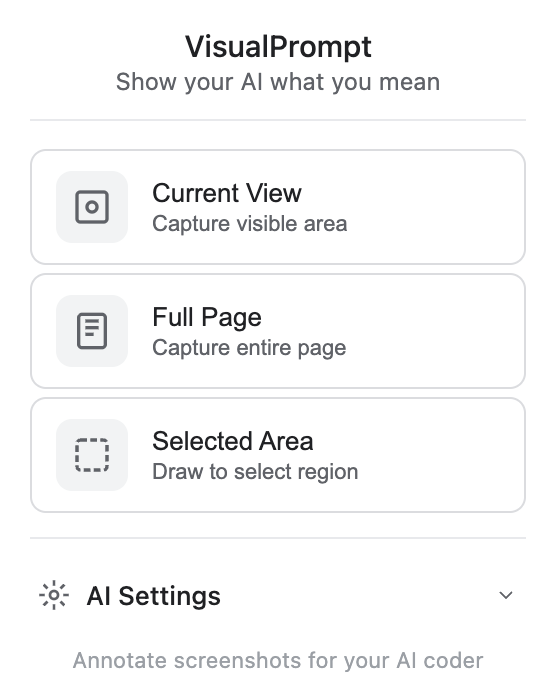
Screenshot any webpage in one click — full page with pan & zoom, visible area, or selected region

Step 2

Markup

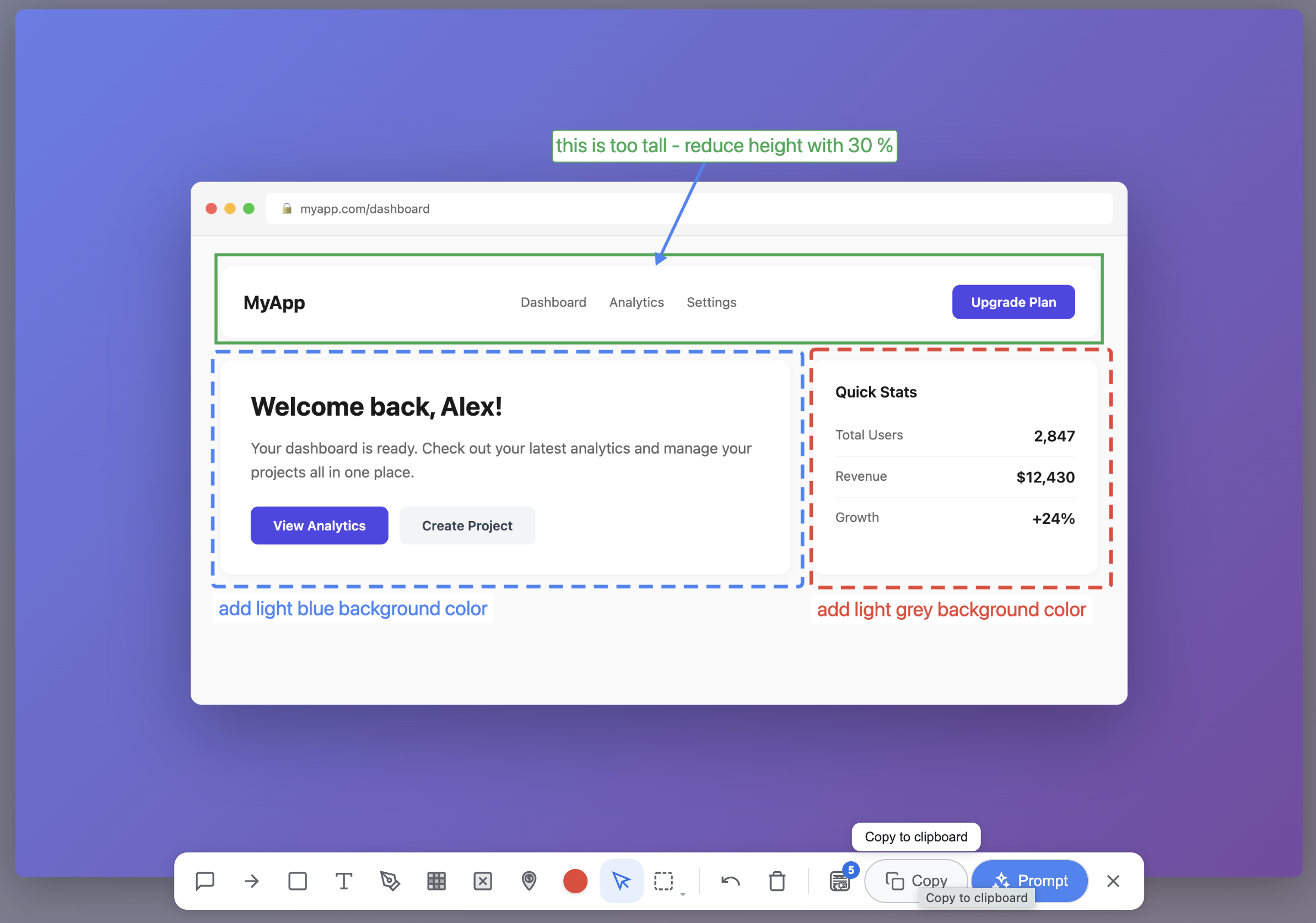
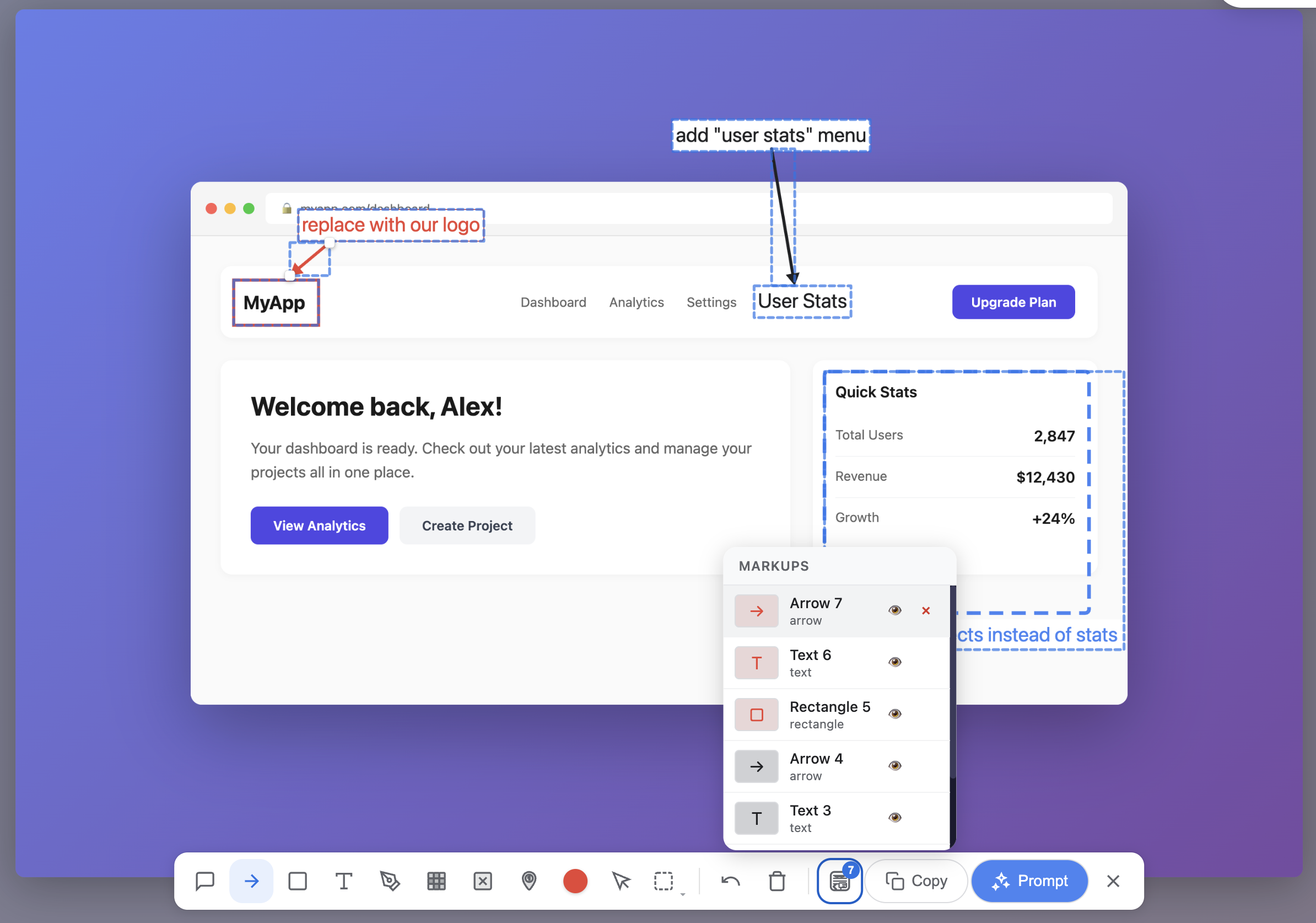
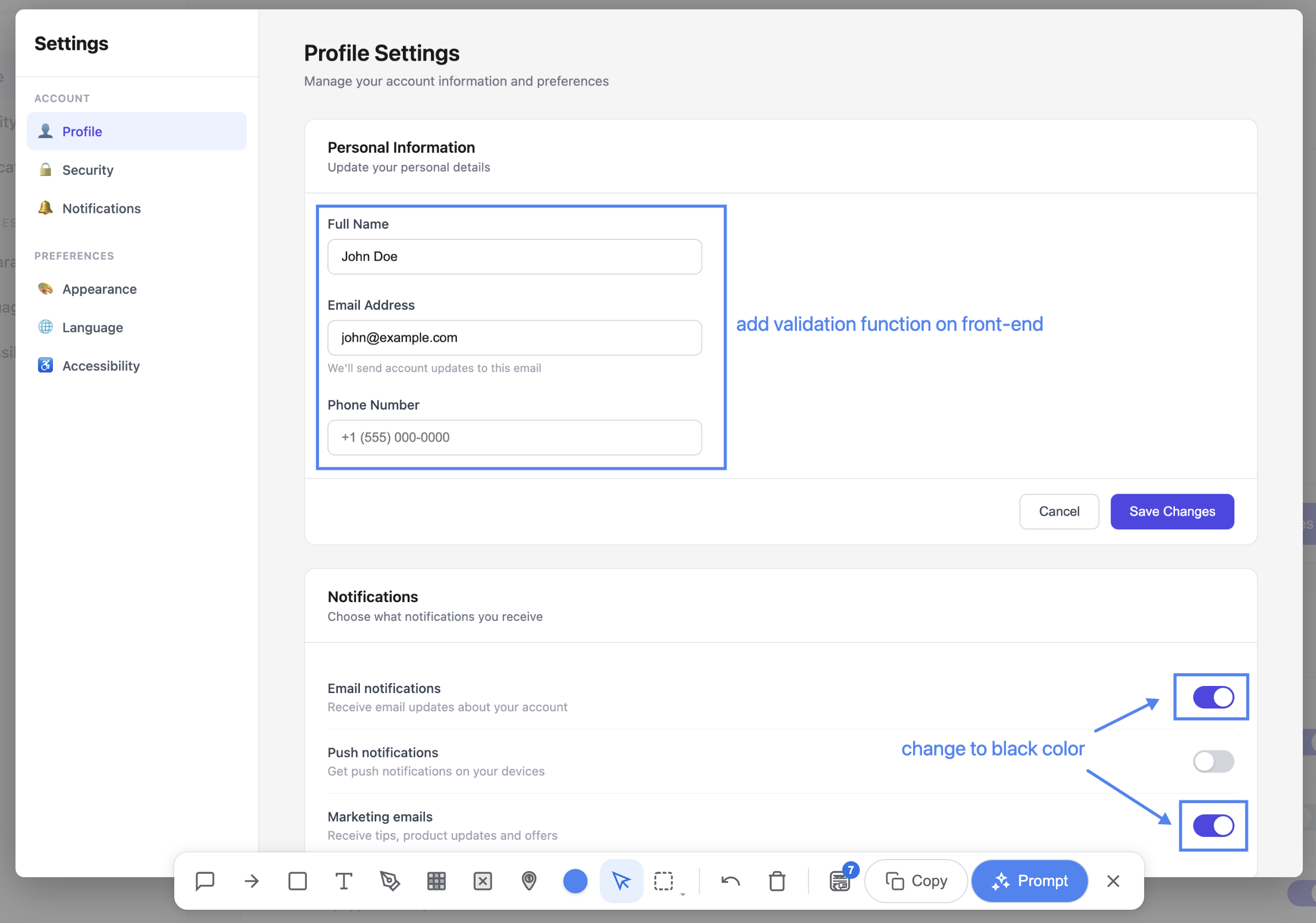
Arrows, rectangles, text, comments, sketches, blur, numbered markers, erase, and an eyedropper to match any color on screen

Step 3

Generate

AI analyzes your annotations with pixel-level accuracy and creates the perfect prompt

Combine Tools for Complex Feedback

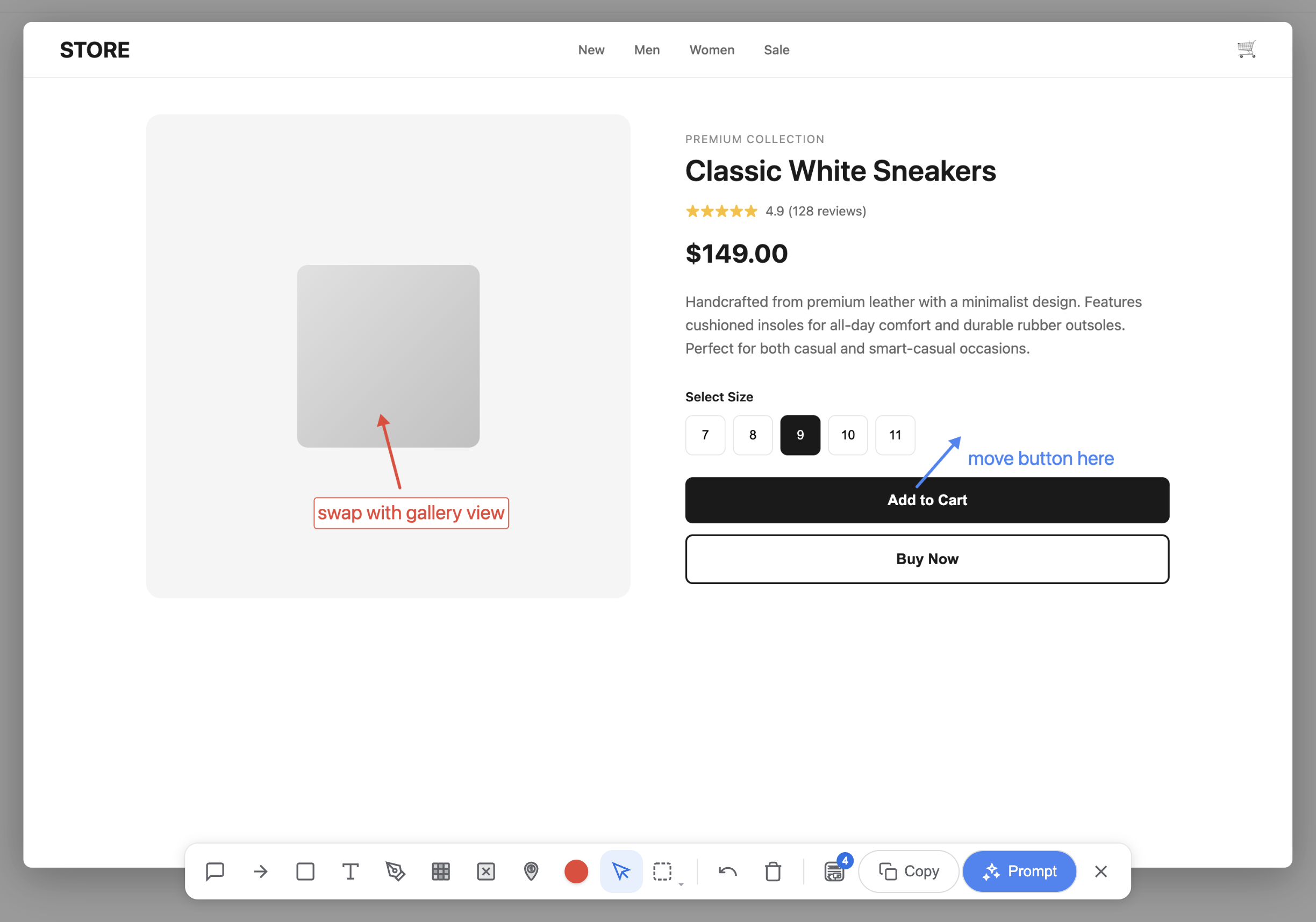
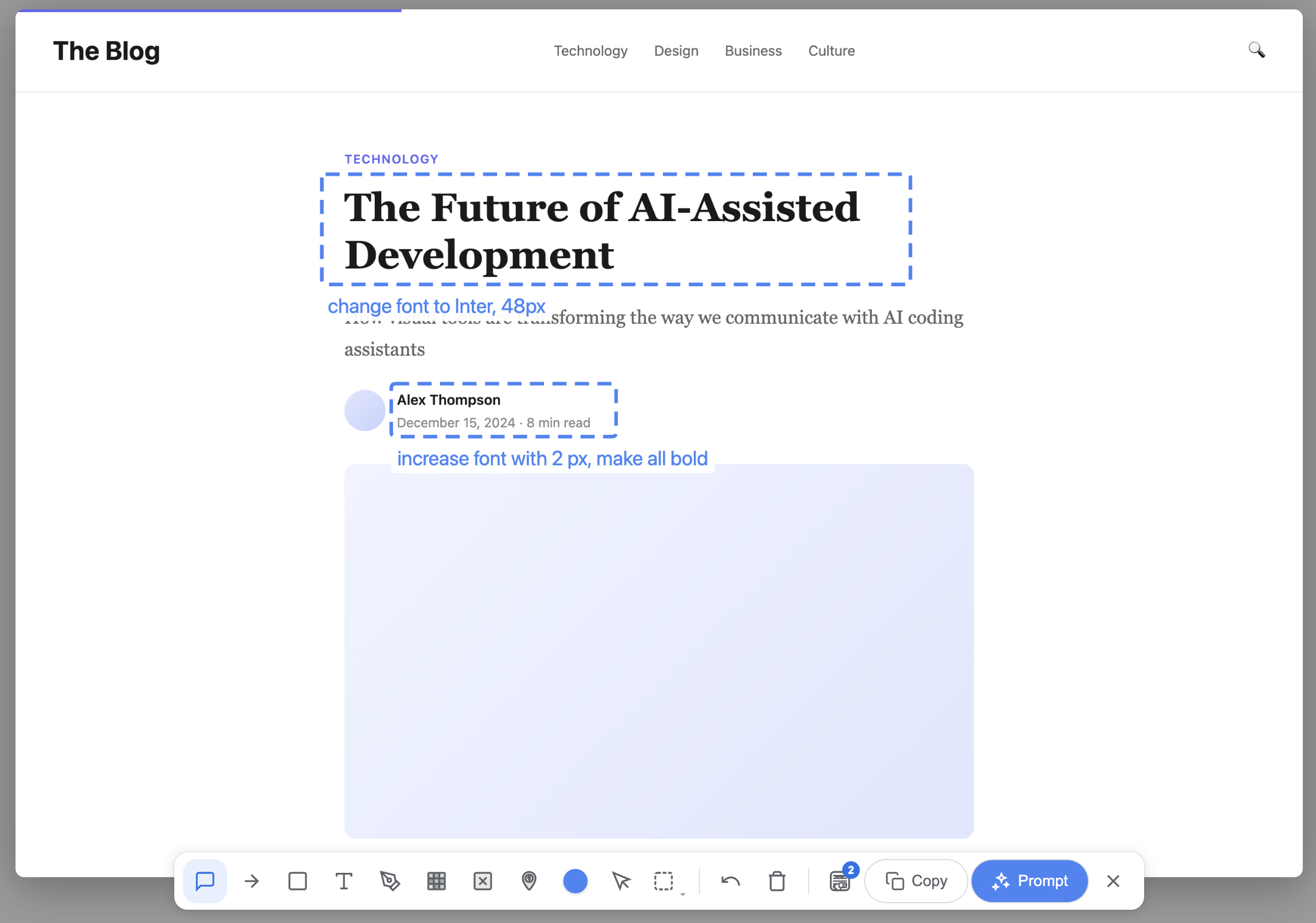
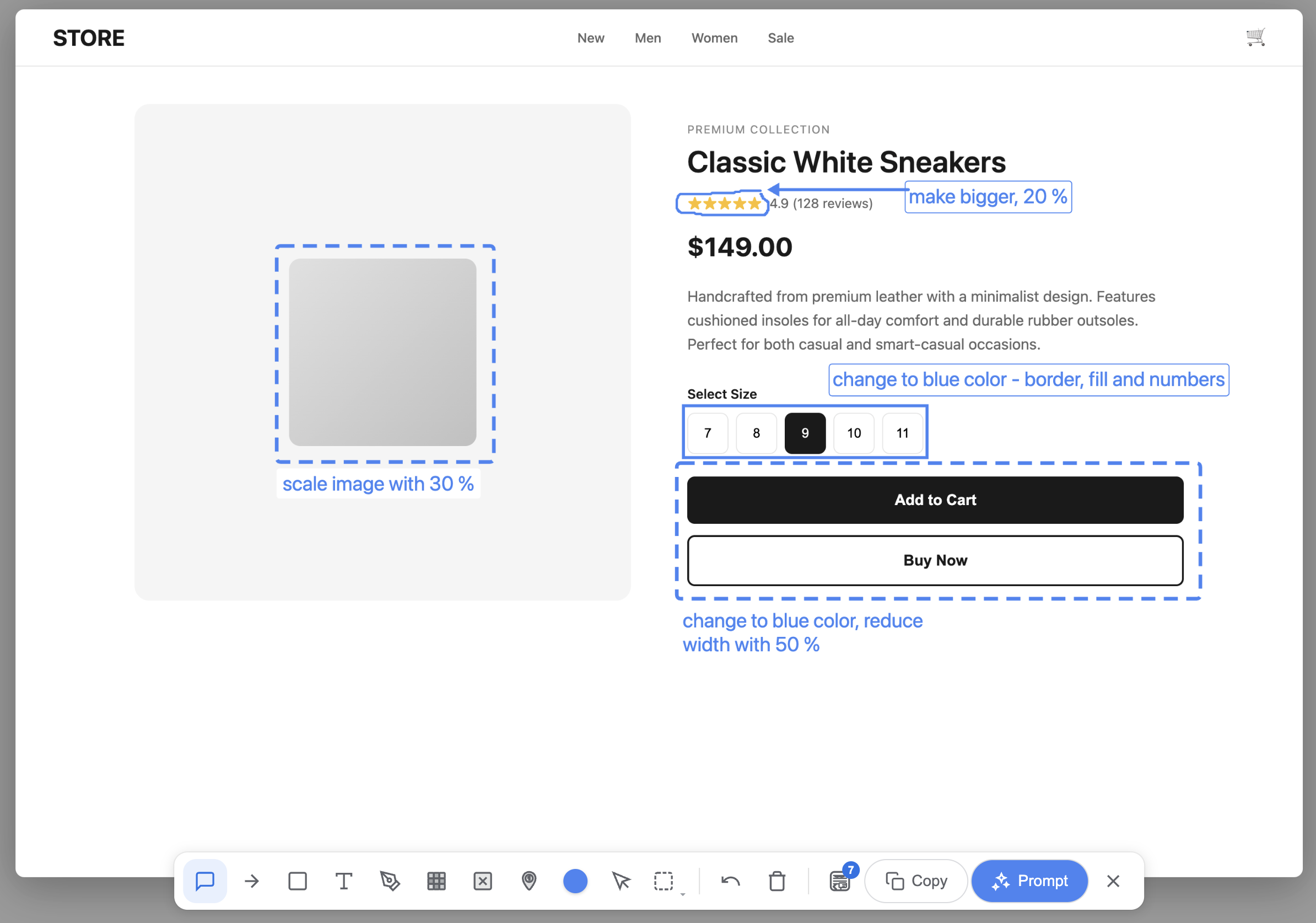
Use comments, arrows, rectangles, text labels, and color-matched annotations together to describe an entire page redesign in one screenshot

E-commerce page with comments, arrows, and rectangles used together for a full redesign

Your Markups Become AI Instructions

ScreenToPrompt interprets your visual annotations with pixel-level precision. No more struggling to describe UI changes in words.

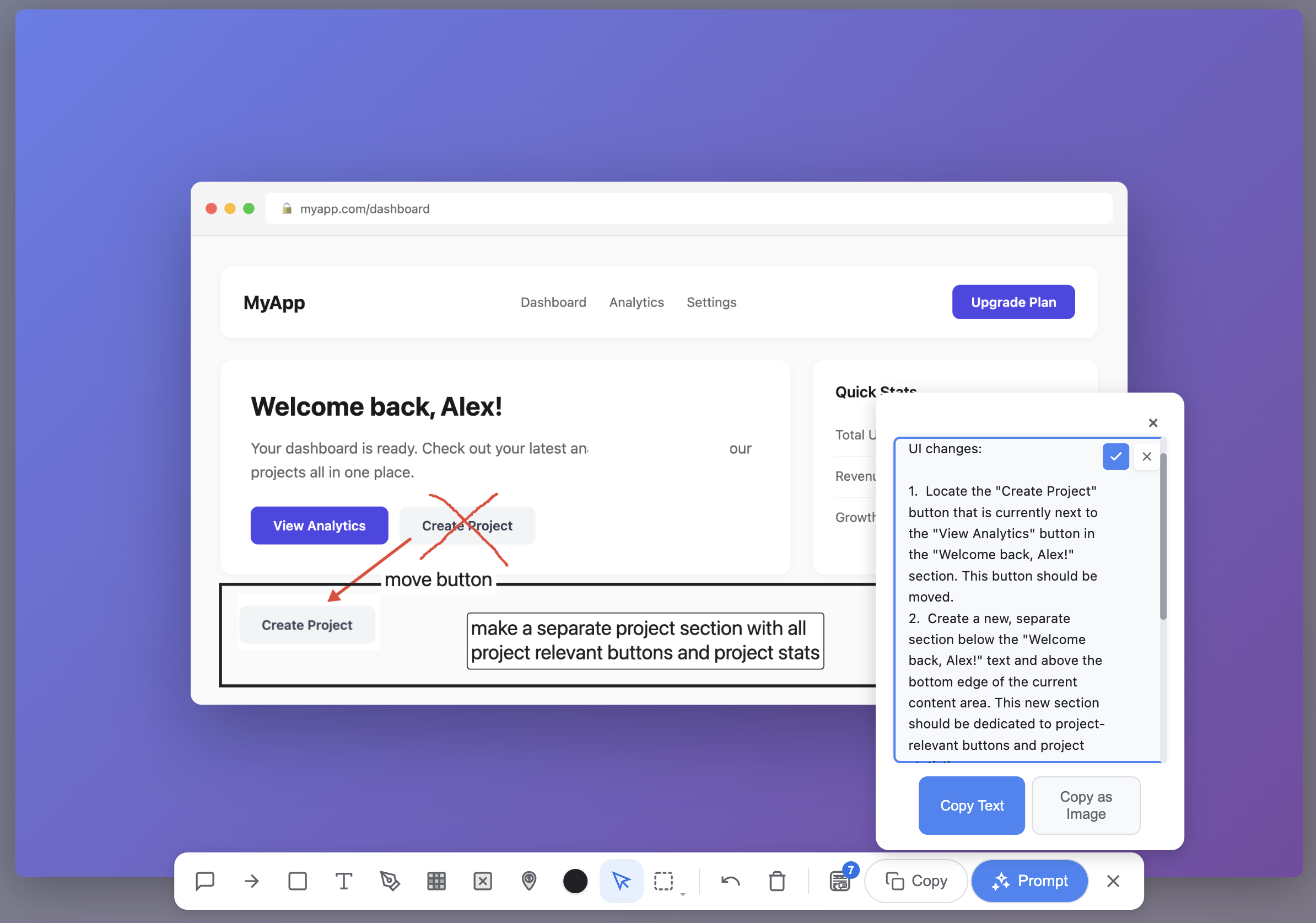
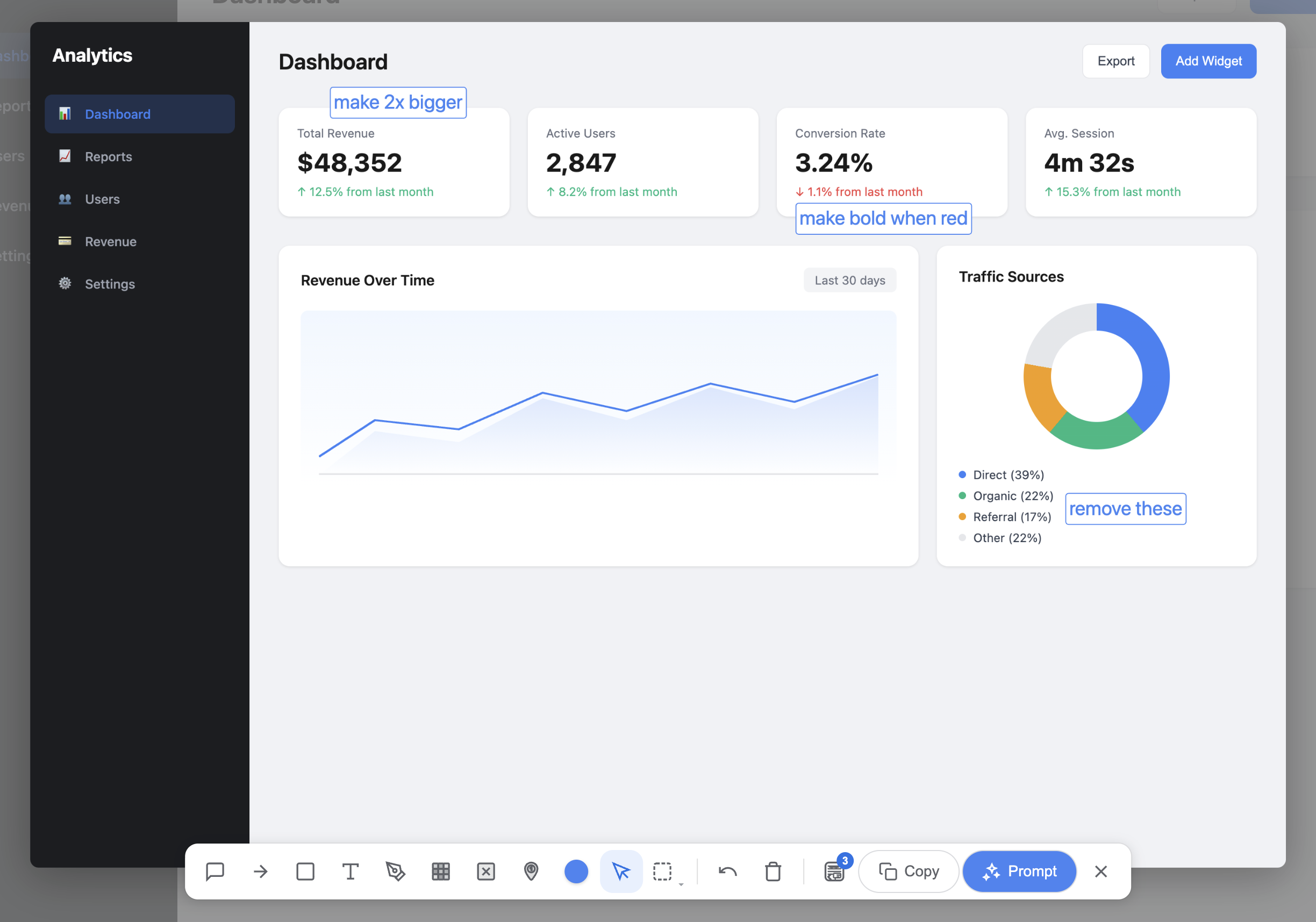
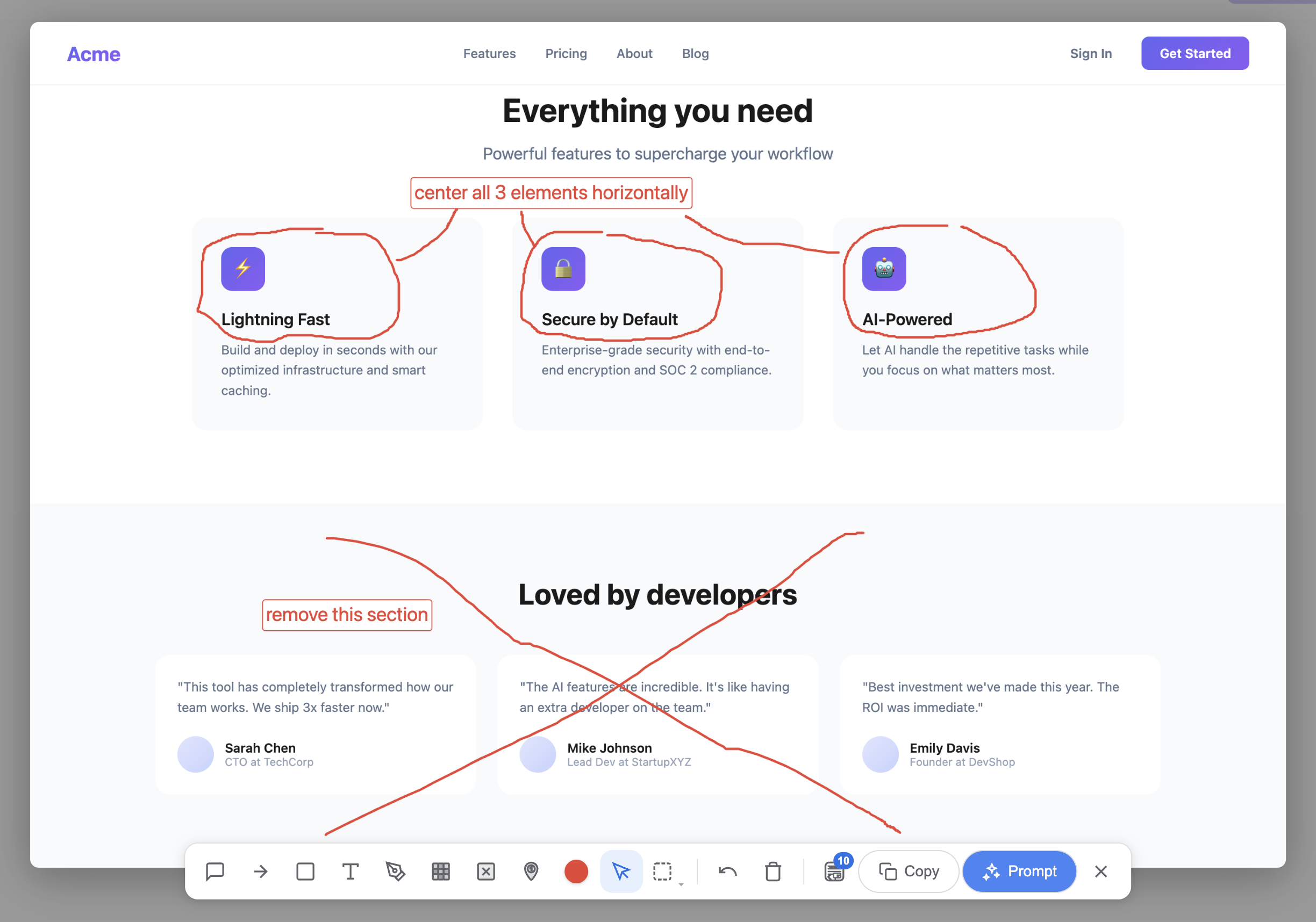
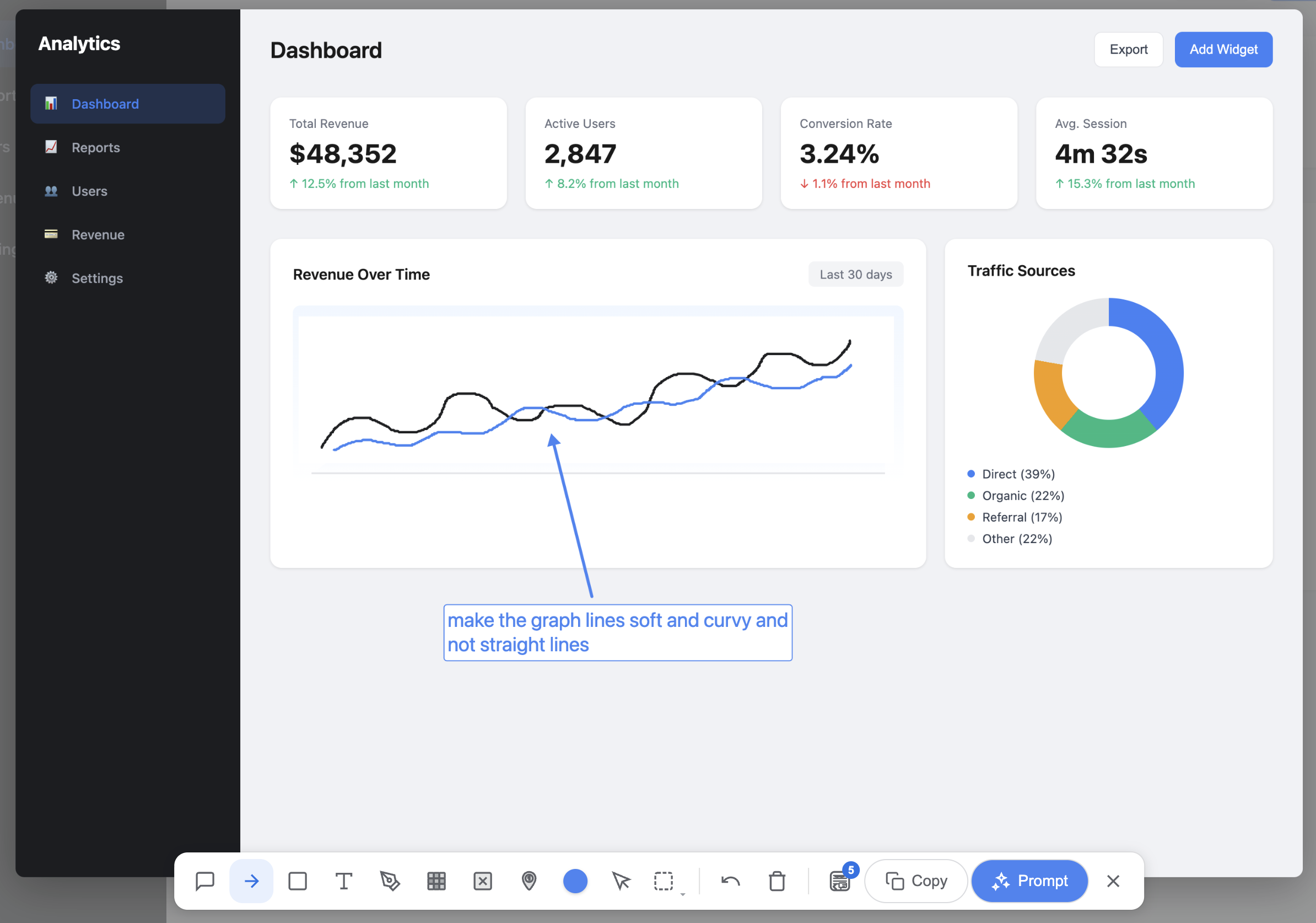
  • Text labels: Write "remove" and AI knows to delete. Write "bigger" and it understands to resize.
  • Arrows: Draw an arrow from A to B and AI understands "move this element here".
  • Sketches: Draw an X and AI interprets it as "delete this". Circle something to highlight it.
  • Comments: Add detailed instructions like "change this button to blue with rounded corners". Select sub-parts independently.
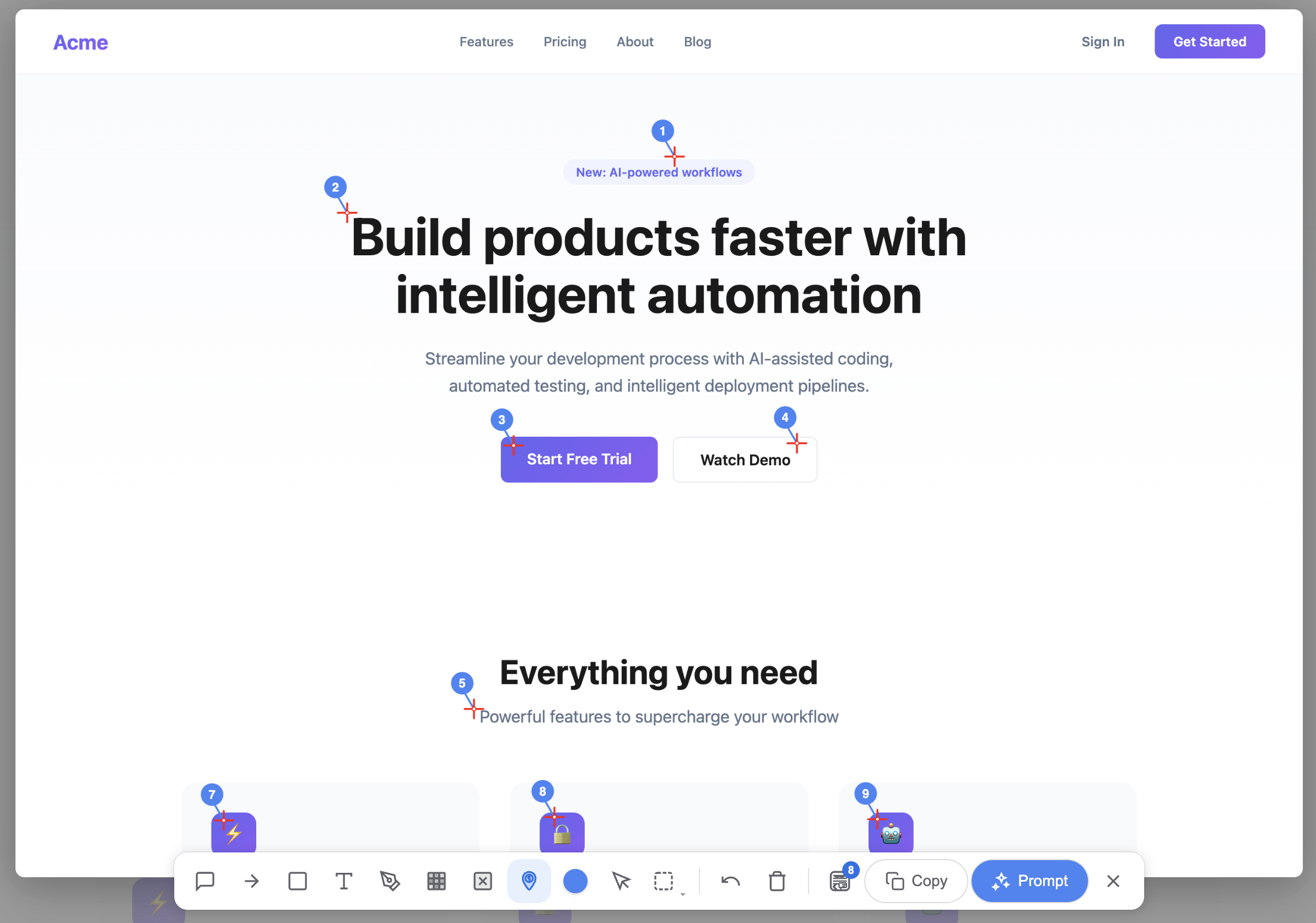
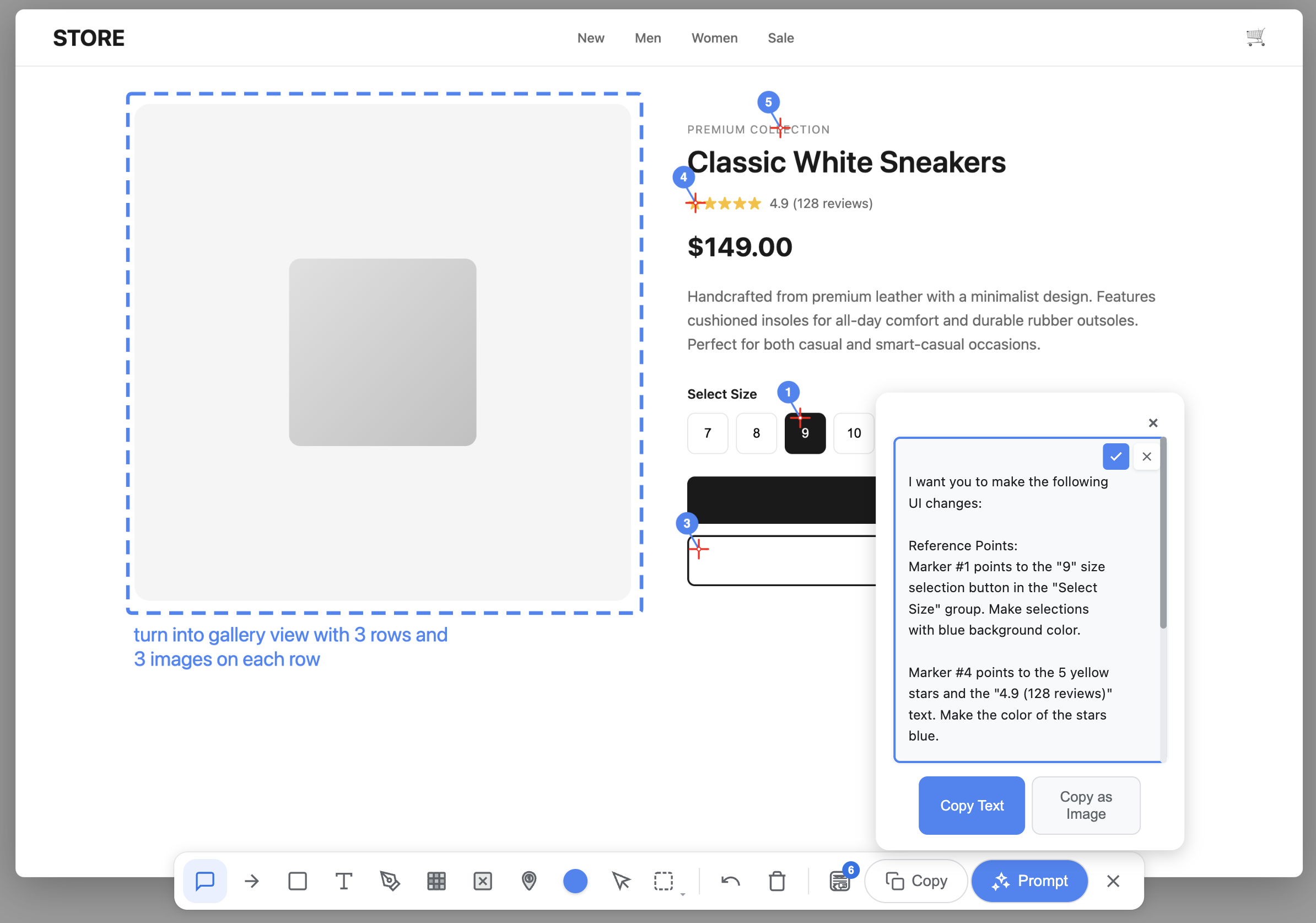
  • Number markers: Create step-by-step instructions with numbered markers. Each marker has a precision crosshair so the AI knows exactly which element you're pointing at.
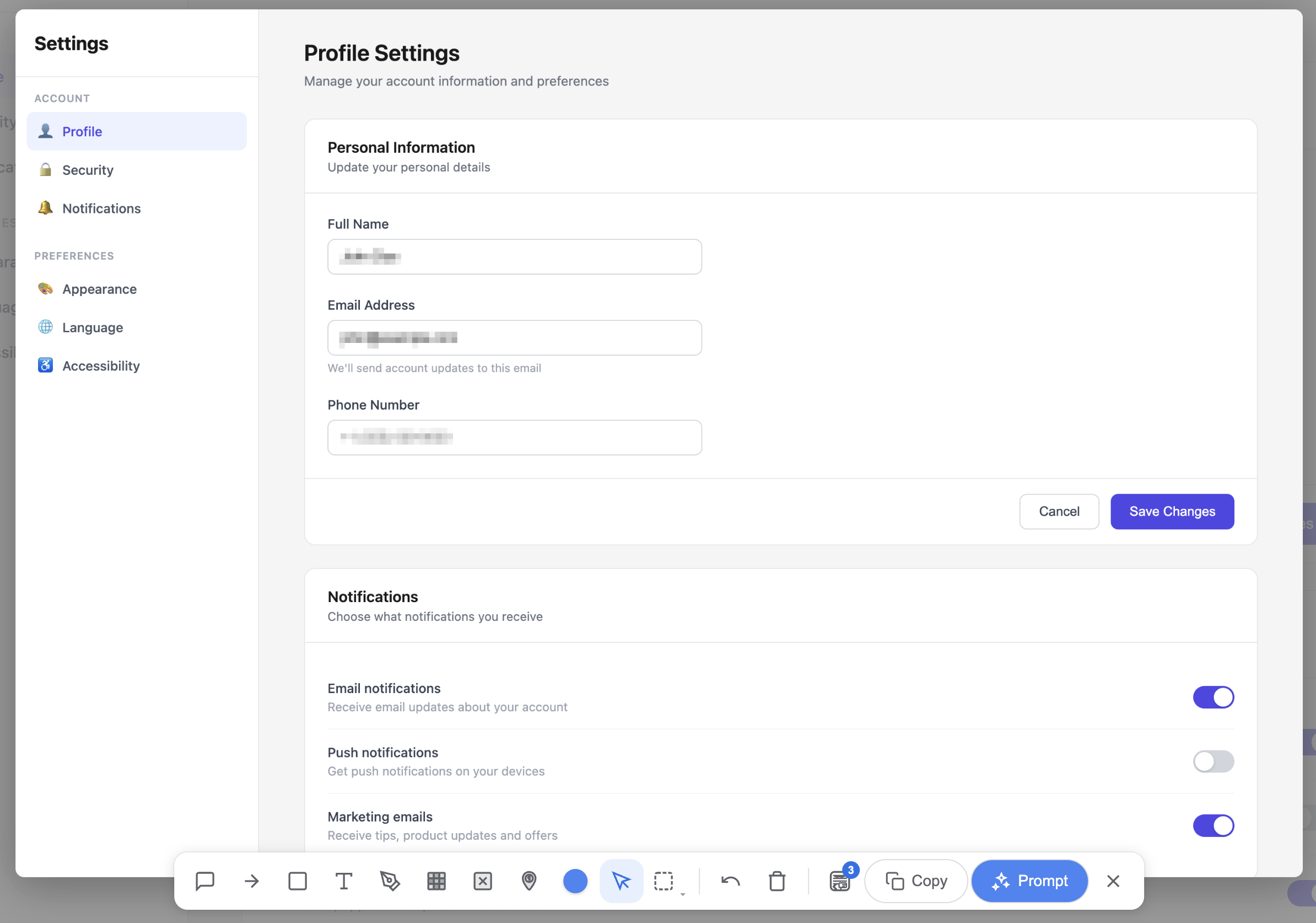
  • Blur/Redact: Hide API keys, passwords, and sensitive data before sharing screenshots with AI.
  • Editable prompts: Tweak the AI-generated prompt before copying — the edit button is always visible so you know it's editable.
  • Copy as image: Export your annotated screenshot with crosshair markers as a single shareable image — paste directly into any AI tool.
  • Eyedropper: Pick any color from the screenshot to match your design system perfectly. Works in both the main toolbar and per-annotation toolbox.
  • Keyboard shortcuts: Nudge annotations with arrow keys, undo with Ctrl+Z, and use Escape to cancel any operation.
Powered by
OpenAI Anthropic Google
Dashboard with annotations and AI-generated prompt panel showing step-by-step instructions E-commerce page with numbered markers and AI prompt panel with generated instructions
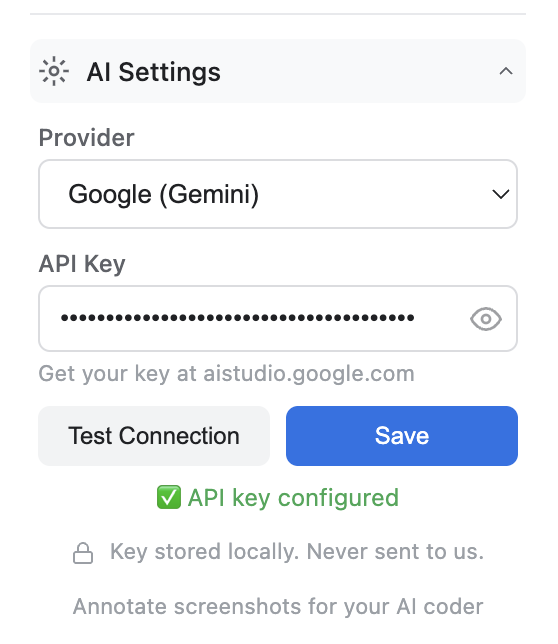
ScreenToPrompt AI settings panel showing provider selection and API key input

AI Setup in 30 Seconds

Connect your preferred AI provider and start generating prompts instantly.

1
Choose Provider Pick OpenAI, Anthropic, or Google
2
Paste API Key Copy your key from the provider dashboard
3
Start Generating Click generate and get your AI-ready prompt
Key stored locally in your browser. Never sent to us.

Privacy First

Sharing screenshots with AI? Protect your sensitive data first.

Blur API Keys Pixelate credentials before they leave your machine
Hide Passwords Redact login forms and settings screens
Cover Personal Data Use the erase tool to cover emails, names, and IDs with a matching background color

Your screenshots stay local until you copy them. No servers, no uploads, no tracking.

Works With Your Favorite Tools

Generate prompts, copy to clipboard, paste into any AI coding assistant

Bolt.new Lovable v0 Base44 Windsurf Cursor Claude ChatGPT

Start Building Visually

Join developers who communicate with AI through visual language

Add to Chrome - It's Free